
Build and operate an AI agent
Create a voice or chat agent, write clear instructions, set up voice and call options, test it, connect a phone number or widget, and launch safely.
An AI agent answers phone calls and website chats for your business. This guide shows you how to create one, tell it what to do, test it properly, and put it to work. It's for whoever owns the agent's quality, usually an admin or team lead.
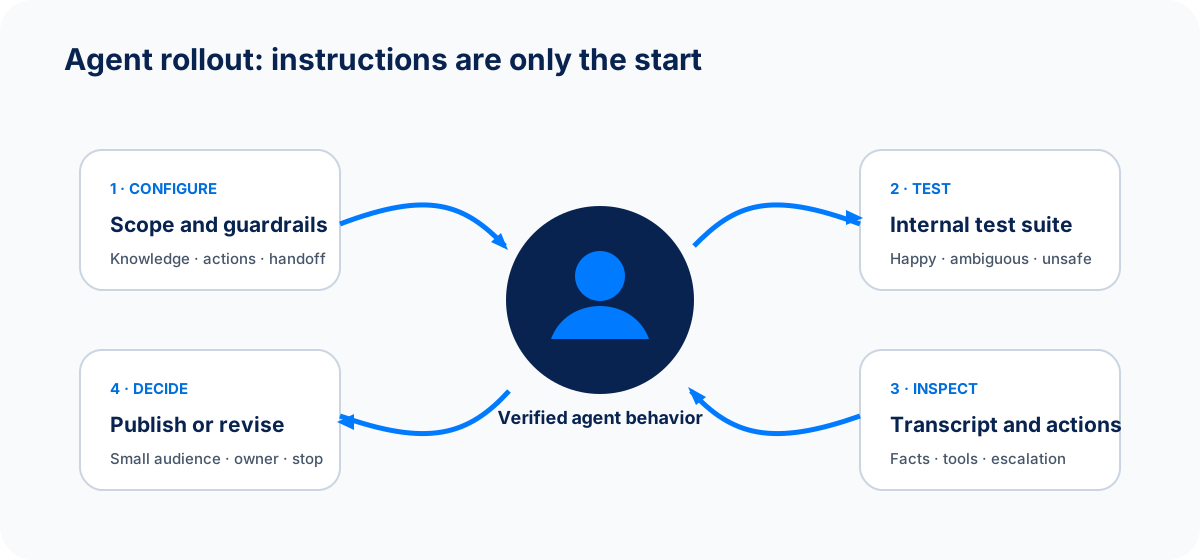
Build agent quality in a loop: change one thing, rerun the tests it affects, then review before launch.
Before you begin
- Plan: AI voice agents are a paid feature. On a plan without them, you'll see Voice agents are a paid feature and an Upgrade plan button.
- Role: you need editor access to create agents. Without it, the create button is disabled and says You need editor access to create agents.
- One clear job: decide the one main thing this agent does, such as answering FAQs or booking appointments.
- An owner: name the teammate who reviews its conversations and keeps it up to date.
- Your website (optional): Spacebrain can read it to pre-fill answers.
Where to find it
Open Chat & Voice → Agents. The list shows each Agent, its Assigned Phone Number, Agent ID, and Status (Active, Inactive, Paused, Trial Expired, or Plan Limit). The row menu has Test Agent and Delete.
When you open an agent, the sidebar shows Configuration and Actions for that agent.
Create an agent
- Select Create Agent. (On the Chat & Voice Overview it's called Create agent.)
- Under Start with your website, paste your site address and select Analyze. Tick Use my website as a knowledge base for this agent if you want its pages used for answers. No website? Select Skip / I don't have a website.
- Answer the questions. Items marked Needs your input are required. Add optional details shows extra questions. Your answers are saved in this browser tab until you finish.
- Select Review answers, check everything, then select Create Agent.
Spacebrain writes the first set of instructions and picks a voice. You'll see Agent created! Review every detail it pre-filled from your website. It can get things wrong.
If you see Your agent is being confirmed, don't create another one. Select Check status first.
Configure the agent
Open the agent to see its tabs, grouped into three sets:
| Group | Tab | What you set |
|---|---|---|
| Build | General | Agent Language, Agent Name (letters, numbers, hyphens, and underscores only), a description, an optional System Prompt, and Temperature (lower is more focused, higher is more varied). |
| Build | Prompt | The agent's instructions, in sections. |
| Build | Conversation Flow | An optional step-by-step flow. Available after the agent is saved. |
| Build | Voice | How the agent sounds. |
| Safety | Knowledge | Which knowledge bases it can use. May be hidden on some sub-account tiers. |
| Safety | Guardrails | Topics and behavior to avoid. |
| Deploy | Call Configuration | Call recording, CRM updates, and call length limits. |
| Deploy | Phone Numbers | Which number the agent answers. Available after saving. |
| Deploy | Outbound Calls | Test calls and calls to contacts. Available after saving. |
| Deploy | Widget | The website chat bubble. Available after saving. |
Write clear instructions
A good prompt covers:
- Who it is: the business it represents and who it helps.
- Its goal: the outcome it should reach, such as a booked appointment.
- What it can rely on: use the knowledge base; don't guess prices, dates, or policies.
- How to talk: tone, language, how many questions to ask, and when to confirm details.
- What it can do: actions it may take, and which need the caller's confirmation first.
- When to hand off: situations where a person should take over.
- What it must never do: claims, advice, or data it must avoid.
Put facts in Knowledge and behavior rules in the Prompt. If both the General prompt and the Prompt sections are empty, a default prompt may be used, so always write your own.
Example: "You answer calls for Harbor Physio after hours. Help callers book, move, or cancel appointments and answer questions using the clinic FAQ. Never give medical advice. If a caller describes an emergency, tell them to call emergency services. If you can't help, take their name and number and say someone will call back the next business day."
Guardrails and conversation flow
Guardrails you select are added to the agent's instructions. Check they don't clash with your own prompt, and test both allowed and blocked requests. Guardrails reduce risk; they don't guarantee perfect answers.
Conversation Flow lets you map out steps and branches. Give every branch a clear purpose and a default path. Always test the real conversation, not just the diagram.
Voice and call settings
On Voice, pick a voice and language that suit your callers. Test how it says your business name, people's names, addresses, and numbers.
On Call Configuration:
- Enable Call Recording – records calls. The page reminds you to follow local laws and tell callers they're being recorded.
- Update CRM after each call – reads the transcript and updates the matching lead. Turn it off for agents that only route calls or take messages.
- Max Call Duration (seconds) and Join Timeout (seconds) – limits for each call.
Add actions
Open the agent and select Actions in the sidebar. The Agent Actions page lets you create an action or reuse one from your workspace. Common ones:
- Calendar booking – books Cal.com or Calendly appointments. See Configure calendar booking actions.
- Send SMS during calls – texts the caller a link or reference. See Configure in-call SMS actions.
Give the agent only the actions it needs, and test each one. Check the result in the other system, not just what the agent says.
Test the agent
Use a short, repeatable test set. Write down what should happen before you start:
- A normal request with all the details.
- A vague request that needs a follow-up question.
- A question your knowledge base doesn't cover.
- An attempt to make it ignore its instructions or reveal private information.
- Interrupting mid-sentence and changing topic.
- Asking for a person, or asking it to stop.
- An action that works, one that fails, and a repeated request.
- For calls: background noise, silence, and a wrong number.
To place a test call, use Test Agent in the agents list, or open Outbound Calls and select Test Call. Then review the call in Recordings and check any CRM updates, tasks, and bookings.
Download the agent test matrix to record results. A good reply with a failed booking is still a fail.
Connect a phone number or widget
- Phone: on the agent's Phone Numbers tab, assign a number, or use Chat & Voice → Phone Numbers and select Assign to agent. Then open Call setup on the number and choose AI agent answers. Buying numbers needs an admin or owner and uses credits. See Phone numbers, Power Dialer, and outreach.
- Website chat: on the agent's Widget tab, turn the widget on and copy the Embed Snippet. See Knowledge and Chat Widget.
- Outbound calls: the Outbound Calls tab can Call Contact once a number is assigned. It lists each call's Status, Duration, recording, and transcript under View Details.
Launch and improve
- Start with limited traffic and someone watching conversations.
- Change one thing at a time, and note why.
- Rerun the tests that change affects.
- Remove old knowledge rather than letting conflicting sources pile up.
If something goes wrong
| What you see | What to do |
|---|---|
| Voice agents are a paid feature | Upgrade your plan. |
| Create button is disabled | You need editor access. |
| Knowledge tab is missing | Your sub-account tier may not include it. Don't paste a whole knowledge base into the prompt instead. |
| Phone Numbers, Outbound Calls, or Widget tab is missing | Save the agent first. These appear after it's created. |
| No phone number assigned. on Outbound Calls | Assign a number on the Phone Numbers tab. |
| Agent status is Trial Expired or Plan Limit | Upgrade to reactivate it. |
| Agent says it booked, but nothing is in the calendar | Treat it as failed. Check the action and the calendar before trying again. |
For deeper troubleshooting, see agents, calls, and messaging.
FAQ
Does turning on recording mean every call is recorded?
Not always. Check the call record. Failed or very short calls, and provider problems, can mean no recording is available. Recording also doesn't take care of consent; that's up to you.
Can I undo assigning a number?
Yes. Use Release from agent on the agent's Phone Numbers tab, or Unassign agent on the Phone Numbers page. This doesn't cancel the number's monthly billing.
Should I delete an agent to stop it?
Usually not. Unassign its number or turn off its widget instead, so you keep its setup and history.
Next step
Give the agent trusted information to answer from: Knowledge and Chat Widget.
Next step
Keep moving
Open the relevant Spacebrain screen or contact support if you need help.
Last updated on
Chat & Voice overview
Find your way around Chat & Voice, from AI agents, knowledge, and the chat widget to phone numbers, calling, recordings, and texting registration.
Knowledge and Chat Widget
Create a knowledge base from documents or your website, attach it to an agent, and add an agent-powered chat bubble to your site.