
Create an account and sign in
Sign up with email or Google, choose a plan, confirm your email, accept a team invitation, sign in with a passkey and reset a forgotten password.
This guide covers everything that happens before you reach the Spacebrain dashboard: creating an account, choosing a plan, confirming your email, joining a teammate's workspace and getting back in if you forget your password. It's for new users, invited teammates and people joining an agency's client workspace.
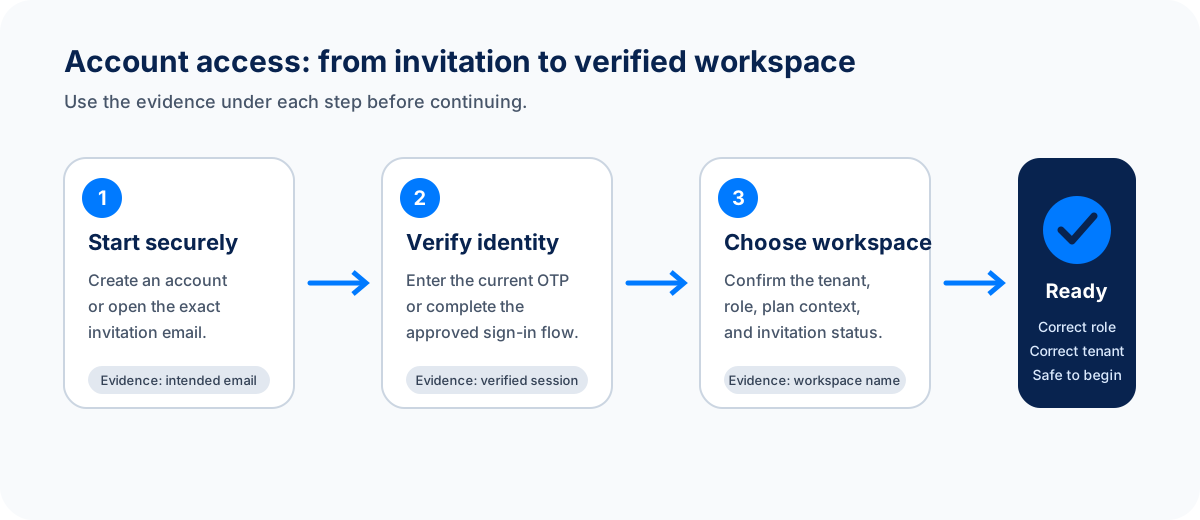
Use one account from start to finish. If a step doesn't finish, complete it rather than creating a second account.
Before you begin
- An email address you can open. You'll get a confirmation link and, if needed, password reset codes there.
- The right link. Use the Spacebrain sign-in page for your own account. If you were invited, use the link in your invitation email. If an agency set up your workspace, use the sign-in link they gave you.
- A payment card, only if you choose a paid plan. The Free plan doesn't need one.
Never share sign-in details
Spacebrain staff will never ask for your password, reset code or passkey. Don't forward invitation or reset links to anyone else. Ask an admin to invite the right person instead.
Which sign-in page to use
| You are... | Go to |
|---|---|
| Creating your own Spacebrain account | The Spacebrain sign-in page, then Sign up |
| Joining a teammate's workspace | The link in your invitation email |
| Joining a client workspace run by an agency | The branded link your agency sent you (it may use the agency's own web address) |
Check the web address before you type a password. The main app uses base.spacebrain.ai. If a link looks unfamiliar, ask the sender to confirm it by phone or chat.
The sign-in and sign-up pages have a language selector. If you arrive from the Spacebrain website in another language, the sign-in page opens in that language.
Create an account with email
- Open the sign-in page and select Sign up.
- Under Or continue with email, enter your Email address and a Password. Your password needs at least 8 characters, including an uppercase letter, a lowercase letter and a number.
- Tick the box to accept the Terms of Service and Privacy Policy.
- If a human-verification check appears, complete it.
- Select Create free workspace once and wait. Selecting it again won't speed things up.
- On Choose your plan, pick a plan:
- Select Continue with Free to start without a card.
- Or choose a paid plan. On the payment page, enter your card. If the plan has a trial, the page shows No charges today and the date your first payment is due.
- Spacebrain shows Preparing your workspace and then opens the setup screen. See First-run setup and guidance.
What you should see: a setup screen that says Set up your workspace, followed by your dashboard with your workspace name at the top of the left sidebar.
Create an account with Google
- On the sign-up page, tick the box to accept the Terms of Service and Privacy Policy.
- Select Sign up with Google and choose the Google account you want to use. If your company uses Google Workspace, choose your work account.
- Return to Spacebrain and choose a plan, as above.
If you already created an account with Google and later try to sign up with the same email and a password, Spacebrain tells you and shows Continue with Google to finish. Use that button instead of creating a new account.
Confirm your email address
After you sign up, Spacebrain emails you a verification link. You don't have to click it right away; you can start setting up first.
- Open the email from Spacebrain and select the link.
- You'll see Email verified successfully. Select Continue to Spacebrain.
Some features stay locked until you confirm, and show Verify your email to continue. To get a new link:
- Go to Settings → General.
- Find your email address. It shows Verified or Not verified.
- Select Send verification email.
If you typed the wrong email, select Change email in the same place, enter the right one and select Save email. A verification link expires or stops working once it's been used. If you see Verification link unavailable, sign in and request a new one.
Sign in
The sign-in page (Welcome back) offers the methods that work on your device:
- Email and password: under Or sign in with email, enter your details and select Sign in.
- Google: select Sign in with Google and pick the same Google account you signed up with.
- Passkey: select Sign in with a passkey and approve the prompt on your device (for example, Touch ID, Face ID or Windows Hello). This only appears if your browser supports passkeys.
To add a passkey, sign in first, then go to Settings → General → Sign-in security and select Add passkey. Keep another way to sign in (like your password) working in case you lose the device.
Accept an invitation to a workspace
- Open the newest invitation email. Older links may no longer work.
- Select the link and sign in, or create an account using the same email address the invitation was sent to.
- Check the workspace name and Your role on the invitation page, then select Accept.
- Look at the top of the left sidebar to confirm you're in the right workspace before you start work.
You can also find invitations waiting for you in the workspace switcher at the top of the left sidebar, under Pending Invitations.
If you're already signed in as someone else, sign out first or open the link in a private browser window.
Reset a forgotten password
- On the sign-in page, select Forgot password?
- Enter your Email address and select Send reset code.
- Check your email for a 6-digit code. Look in spam or junk if it doesn't arrive within a few minutes.
- Enter the code under Enter verification code and select Verify.
- On Set new password, enter a New password and Confirm password, then select Reset password.
- When you see Password reset!, select Sign in and use your new password.
You can request a new code after a short wait. Only the newest code works, so always use the latest email. Resetting your password doesn't change how Google sign-in works.
If something goes wrong
| What you see | What to do |
|---|---|
| You keep landing on Choose your plan | Your sign-up isn't finished. Choose a plan. Continue with Free is fine if you're not ready to pay. |
| Plans are taking a moment to load | Select Try again. If you're signed in with the wrong account, select Sign in with a different account. |
| Invalid or expired invitation link | Ask the person who invited you to resend the invitation. Don't ask them to forward someone else's link. |
| You signed in but don't see the workspace you expected | Open the workspace switcher at the top of the left sidebar and choose the right one. If it isn't listed, you haven't accepted the invitation yet. |
| Google opens with the wrong account | Sign out of Google or use a private window, then try again. |
| The reset code never arrives | Check spam and any company email filters. Wait for the resend timer, then request one new code. |
For more help, see account-access troubleshooting.
FAQ
Do I need a credit card to sign up?
No. The Free plan doesn't need a card. Paid plans ask for a card, and some start with a free trial so nothing is charged on day one.
Can I use both Google and a password?
Use the method you signed up with. If you created your account with Google, keep using Sign in with Google, and add a passkey from Settings → General if you want a second option.
I was invited but already have a Spacebrain account. What do I do?
Sign in with the email address the invitation was sent to and accept it. The new workspace appears in your workspace switcher alongside your existing ones.
Can I change the email address on my account?
Yes. Go to Settings → General, select Change email, save the new address, then confirm it with the link we send.
Next step
Next step
Keep moving
Open the relevant Spacebrain screen or contact support if you need help.
Last updated on
Getting started
New to Spacebrain? Create your account, set up your workspace, get your first useful result and learn the words you'll see everywhere.
First-run setup and guidance
Finish the two-step workspace setup, pick a first goal, use the Getting started guide, try sample data, skip setup or replay the tour.